Creating New Feature Presets
You can create new dataset feature and region feature presets in the Feature Presets dialog.
 How to Create a New Dataset Feature Preset
Refer to the following instructions for information about creating a dataset feature preset. New dataset feature presets are saved in the root directory: \ProgramData\ORS\Dragonflyxx\Data\OrsTrainer\FeaturePresets.
- Click the Features tab on the Segmentation Trainer dialog.
The Features panel appears (see Features Panel for information about the panel).
- Right-click inside the Dataset Features box and then choose Create New in the pop-up menu.
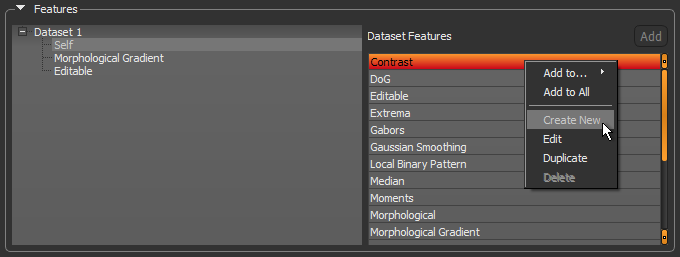
The Feature Presets dialog appears.
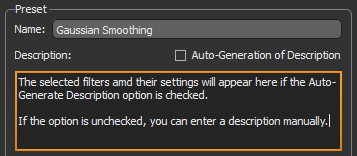
- Enter a name for your new feature preset in the Name edit box, recommended.
- Do one of the following:
- Check the Auto-Generate Description option, recommended. If selected, a description based on the filters added to the preset, as well as their settings, will be created automatically.
- Enter a description in the edit box. Make sure that the Auto-Generate Description option is not selected.
- Select the first filter you want to add to the preset in the Available Filters table and then click the Add to Preset button.
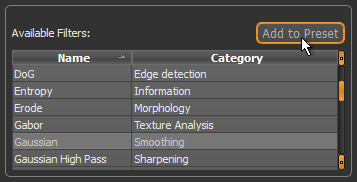
The selected filter(s) is added to the Filters in Preset table.
- If required, remove any filters in the stack that are not required.
For example, you may not want to apply all of the morphological operations available for the Morphological preset.
- Select the settings for each filter included in the preset, as required, and preview the filtering effects.
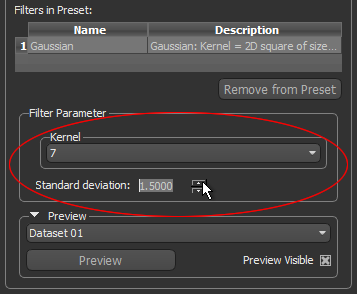
Refer to the topic Image Filters and Settings for information about selecting the filter settings.
To preview filtering effects, select a dataset input in the drop-down menu and then click the Preview button.
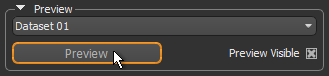
NOTE You can toggle between the preview and the original image by checking and unchecking the Preview Visible box.
- Add additional filters to the feature preset, optional.
- Click the Save button to save your new feature preset.
The new preset is added automatically to the Dataset Features box and will be available for all classifiers.
How to Create a New Region Feature
Refer to the following instructions for information about creating a region feature preset. New region feature presets are saved in the root directory: \ProgramData\ORS\Dragonflyxx\Data\OrsTrainer\RegionFeaturePresets.
- Click the Features tab on the Segmentation Trainer dialog.
The Features panel appears (see Features Panel for information about the panel).
- Select Region as the Working Area on the Features panel.
- Right-click inside the Region Features box and then choose Create New in the pop-up menu.
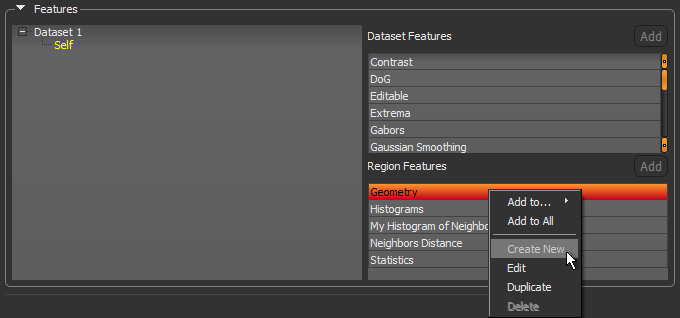
The Feature Presets dialog appears.
- Enter a name for your new feature preset in the Name edit box, recommended.
- Do one of the following:
- Check the Auto-Generate Description option, recommended. If selected, a description based on the region information in the preset, as well as the settings, will be created automatically.
- Enter a description in the edit box. Make sure that the Auto-Generate Description option is not selected.
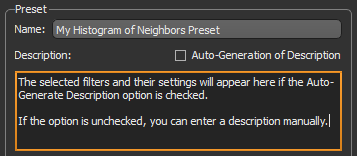
- Select the region information you want to add to the preset in the Available Regions Information table and then click the Add to Preset button.
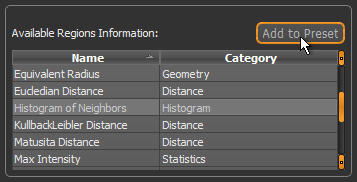
The selected region information is added to the preset. Refer to the topic Region Features for more information about region information.
- Select the settings in the Filter Parameter box, as required.
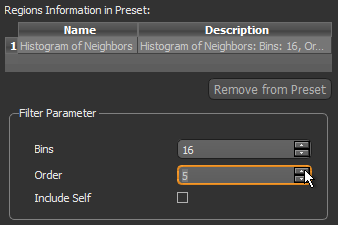
You should note that previews are only available after the region feature preset is added to the features tree.
- Add additional filters to the feature preset, optional.
- Click the Save button to save your new feature preset.
The new preset is added automatically to the Region Features box and will be available for all classifiers.